
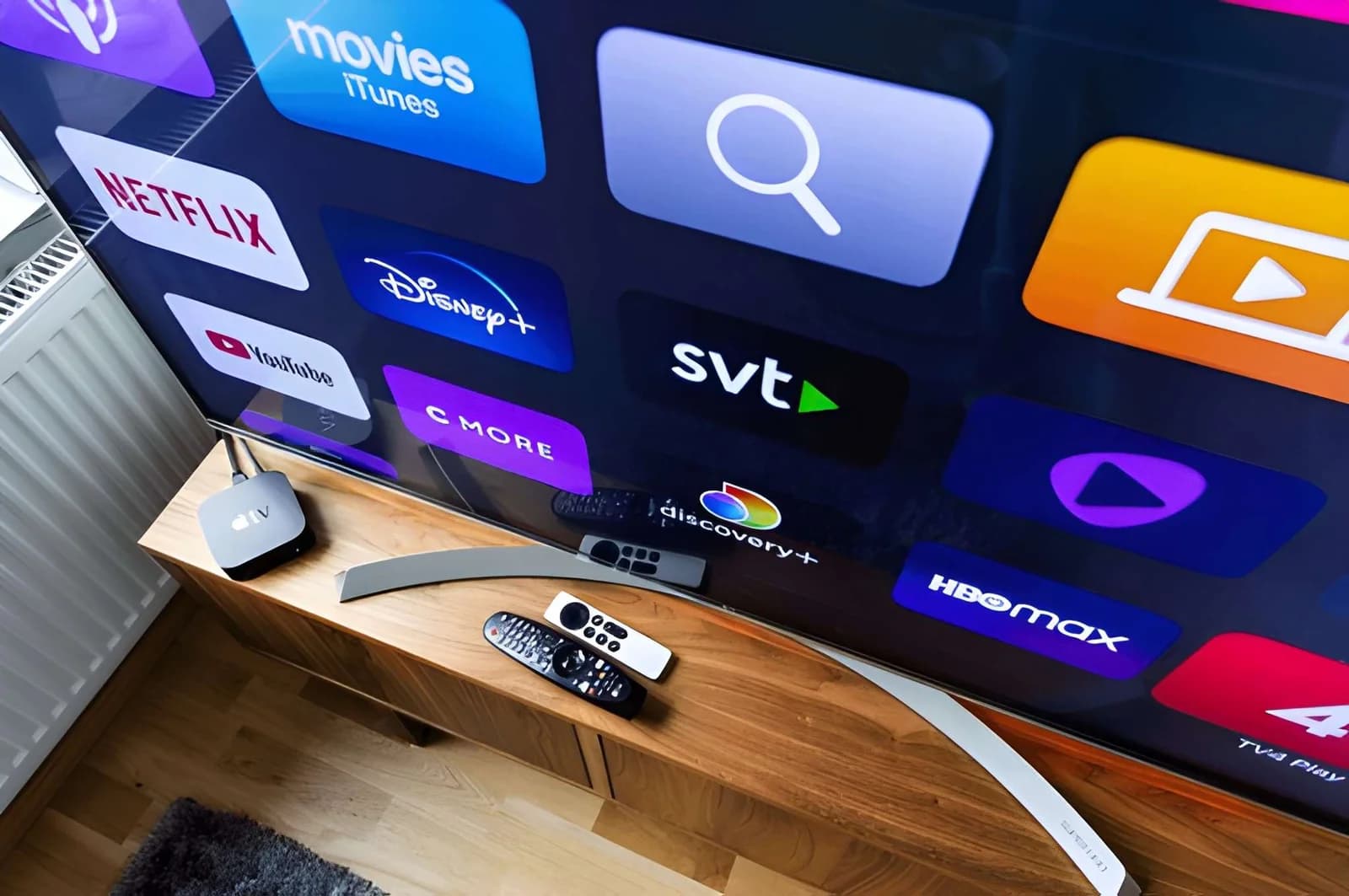
Smart TV owners in Australia have a small advantage that Firestick and Roku users do not. Your telly already has an app store, a remote, and a network connection built into the panel. No dongle, no extra HDMI port, no second remote to lose down the side of the couch. But that advantage comes with a catch, because Smart TV platforms are not all built the same, and some handle IPTV players much better than others.
If you have a Samsung from the last five years, an LG with webOS, a Sony running Android TV, or a Hisense with VIDAA, you can absolutely run IPTV Australia on it. The process is different from Firestick though, and it is worth understanding what your specific TV can and cannot do before you spend money on an app that will not install.
This guide walks through exactly how to install IPTV on Smart TV in Australia, brand by brand, with the same player we recommend for every other device, IBO Player Pro. By the end you will know whether your TV works, which app store to use, and what to do if your model is on the older side. If you are still deciding between Smart TV and Firestick, our Firestick setup guide is the better starting point, because that path works on every TV regardless of brand.
Why Smart TV Setup Is Different in Australia
The reason Smart TV IPTV setup is not one single process comes down to the operating system. Samsung uses Tizen, LG uses webOS, and most other brands, Sony, TCL, Hisense, Philips, use Android TV or Google TV. Each of those platforms has its own app store, its own rules for what can be published, and its own quirks when it comes to streaming apps.
Tizen and webOS are the most locked down. They only allow apps from their own stores, and the range of IPTV players available is smaller than what you will find on Android TV or Firestick. That said, IBO Player Pro is available on both platforms through the official app stores, which makes the setup straightforward once you know the correct steps.
Android TV and Google TV are much more flexible. You can install IBO Player Pro directly, and if for some reason it is not in your regional store, you can sideload it with very little effort. This is why Sony, TCL and Hisense owners usually have the easiest time with IPTV.
One more thing worth knowing. Not every Smart TV has the processing power to handle 4K IPTV streams smoothly. If your TV is more than five years old, or if it was a budget model when you bought it, you might find that playback stutters no matter what player you use. In those cases, a cheap Firestick plugged into an HDMI port solves the problem instantly, and the TV continues to work as a display just like before.
| TV Brand | Platform | IBO Player Pro Available |
|---|---|---|
| Samsung (2017 and newer) | Tizen | Yes, official store |
| LG (2017 and newer) | webOS | Yes, official store |
| Sony Bravia | Android TV / Google TV | Yes, official store |
| Hisense | VIDAA or Android TV | Depends on model |
| TCL | Android TV / Google TV | Yes, official store |
| Philips | Android TV | Yes, official store |
The Player You Should Use on Smart TV
Just like every other device we recommend, IBO Player Pro is the best IPTV player for Smart TV in Australia. It is fast, it handles Xtream Codes login cleanly, it pulls the seven day EPG guide automatically, and the interface feels like a proper cable TV system rather than a website dressed up as an app.
The remote control experience matters more on Smart TV than on any other device, because you are using the TV remote that came in the box, not a keyboard or a touchscreen. IBO Player Pro is designed for exactly this. Channel zapping is quick with the arrow keys, searching for a channel brings up an on screen keyboard, and favourites are easy to organise without needing a mouse.
If you want to know how IBO Player Pro compares to TiviMate and IPTV Smarters on Smart TV specifically, we cover all of them in our best IPTV player Australia guide. That article breaks down which player wins on which platform, including how each one handles the Samsung and LG remote controls.
How to Install IPTV on Samsung Smart TV
Samsung's Tizen platform has been the same for years, which makes the setup predictable. Here is the process from start to finish.
Start on the home screen and press the Home button on your remote to bring up the app rail at the bottom. Use the left arrow to scroll all the way to the end, then select the Apps icon. This opens the Samsung app store. In the search bar at the top, type IBO Player Pro. If the exact name does not come up, try searching just IBO Player. The app should appear as one of the top results.
Select the app and tap Install. The download is small, usually under fifty megabytes, so it finishes in under a minute on a decent connection. Once installed, open the app. You will see a welcome screen with two login options, Xtream Codes API and M3U URL. Choose Xtream Codes, because it is faster and pulls the EPG guide in a single pass.
Enter the portal URL, username, and password that came in your IPTV Australia welcome message. Be careful with the typing, since Samsung's on screen keyboard can be fiddly. Once everything is entered, tap Login and give it thirty to sixty seconds. The app will download your channel list, the EPG, and the on demand library. When it is done, you are watching.
A small tip for Samsung users. Some older Tizen models from 2016 and earlier will not find IBO Player Pro in the store, because Samsung has deprecated apps for those years. If your TV is that old, your best option is a cheap Firestick or Android TV box plugged into the HDMI port. It costs less than two months of your old cable bill and gives you a modern IPTV experience on an older screen.
How to Install IPTV on LG Smart TV
LG's webOS is very similar to set up, but the menu names are different. Here is the exact path.
Press the Home button on your LG remote. On the launcher bar at the bottom, scroll to the left until you reach the LG Content Store, which is the shopping bag icon. Open it, then use the search bar at the top to type IBO Player. The app should appear in the results list. Tap it, then tap Install.
Once the install finishes, the app icon appears on your launcher bar. Open it. Choose Xtream Codes API on the welcome screen and enter your credentials from the IPTV Australia welcome message. LG's on screen keyboard is slightly easier to use than Samsung's, especially on the newer Magic Remote models, so this step tends to go quicker.
After login, the app downloads your channel lineup and EPG. The whole process, from opening the Content Store to watching your first channel, takes about five minutes on a 2020 or newer LG TV, and slightly longer on older models.
One LG specific thing worth mentioning. If your TV is a 2018 or earlier webOS 3.0 or 4.0 model, some app versions might not be optimised for the older hardware. If playback stutters even after tuning, you can check for a webOS update in Settings, then General, then About This TV, then Check for Updates. LG has continued pushing performance patches for older webOS versions.
What About Sony, Hisense and TCL
These brands mostly run Android TV or Google TV, which means the setup is very similar to installing on a Firestick. Open the Google Play Store, search for IBO Player Pro, install it, and log in with your Xtream Codes. Android TV is the most flexible of all the Smart TV platforms, so you rarely hit any obstacles.
Hisense is the one brand that needs a small note. Some Hisense TVs use their own VIDAA platform instead of Android TV, and VIDAA does not have as many IPTV players available. If you have a VIDAA Hisense, check the app store first. If IBO Player Pro is not there, use a Firestick instead. It is a five minute workaround and gives you the full experience.
Peak Hour Optimisations for Smart TV
Smart TVs are more sensitive to network conditions than people realise, mostly because the Wi Fi chips built into them are often weaker than the ones in a Firestick or phone. A few small changes can make a big difference.
The first is to use Ethernet if your TV has a port. Almost every modern Samsung and LG above a certain size comes with an Ethernet jack on the back. If your TV is within reach of your router, plug it in. This single change eliminates most buffering, especially during peak evening hours when half of Australia is streaming.
The second is to make sure your TV is on the 5GHz Wi Fi band, not 2.4GHz. On most routers, the 5GHz band has a different name, usually something like YourWiFi_5G. Connect your TV to that one. It is faster and less crowded, and the difference during a live AFL game is very noticeable.
The third is to close any background apps before starting a stream. Smart TVs keep apps running in the background even when you switch away from them, and those apps consume memory and bandwidth. On Samsung, press and hold the Back button to see running apps, then close the ones you are not using. On LG, open the recent apps view from the launcher and close everything except IBO Player Pro.
The fourth is to check for TV software updates once a month. Samsung, LG, and Android TV all push performance improvements and player compatibility fixes that help IPTV apps run more smoothly. It takes about ten seconds to check and it is worth the habit.
Common Problems and Quick Fixes
Smart TV IPTV setup usually works on the first try, but a few issues come up often enough to be worth flagging. Here is what to do if you hit one.
| Problem | Likely Cause | The Fix |
|---|---|---|
| App not found in store | TV model is too old for the current app version | Use a Firestick plugged into HDMI instead |
| Login fails with correct credentials | Hidden space or wrong case | Retype slowly, check for trailing spaces |
| Channel list loads but playback stutters | Wi Fi congestion | Switch to Ethernet or 5GHz Wi Fi |
| EPG guide is blank | Playlist needs a refresh | Reload playlist inside IBO Player Pro settings |
| App closes randomly | Low TV memory or background apps running | Close background apps, restart the TV |
If none of that works, our Australian support team on WhatsApp can usually pinpoint the issue within a couple of messages. Smart TV problems almost always come down to either the TV being too old for the app, the network being congested, or a small typo in the login. All three are solvable.

What a Plan Costs in Aussie Dollars
Since the whole point of this is getting your Smart TV set up with a working subscription, here is what a plan actually costs in plain Aussie dollars. Every tier includes the full Australian sports lineup, all major Australian networks, plus US, UK, and international channels.
Frequently Asked Questions
05 QuestionsCan I install IPTV directly on my Smart TV without a Firestick?
Yes, on most Smart TVs made since 2017. Samsung Tizen, LG webOS, and Android TV all have IBO Player Pro available in their app stores. You only need a Firestick if your TV is older, or if it runs a restricted platform like older VIDAA versions.
Which Smart TV brand is best for IPTV in Australia?
Sony, TCL and any other brand running Android TV or Google TV give you the smoothest experience, because the app store is more flexible and the hardware tends to handle 4K streams well. Samsung and LG are close behind, with IBO Player Pro available directly through Tizen and webOS. Older or budget models can struggle with 4K playback.
Do I need an IPTV player app, or can I just use my TV browser?
You need a dedicated player app. A TV browser cannot handle Xtream Codes login, cannot pull an EPG guide, and cannot handle the buffer management that live IPTV streams need. IBO Player Pro is the app we recommend on every Smart TV platform.
Why does my Smart TV IPTV stream stutter at night?
Evening stutter is usually caused by Wi Fi congestion or your ISP throttling streaming traffic during peak hours. Switch to Ethernet if your TV has a port, or move to the 5GHz Wi Fi band. If the problem persists only between 7 and 10 PM, a VPN solves it by hiding the traffic type from your ISP.
Can I use one IPTV Australia subscription on both my Smart TV and my phone?
Yes. You can install IBO Player Pro on unlimited devices under one subscription. The number of simultaneous streams depends on your plan. Standard supports one screen, while Multi Room plans support two or three at the same time.
One Last Thing
Smart TV owners in Australia actually have it easier than most, as long as they know which platform they are on and what to expect. Tizen and webOS owners install through the official app store. Android TV owners install through the Google Play Store. And if the TV is too old to run the current player, a twenty dollar Firestick solves the problem in five minutes.
Once your subscription is loaded, the Smart TV becomes a full IPTV Australia endpoint. AFL on Friday night, cricket on the weekend, movies in the evenings, and an EPG guide that makes flipping channels feel exactly like the old days, except you are not paying a hundred and twenty dollars a month for it.
If you want to get started, message us on WhatsApp and mention you are setting up on Smart TV. We will send IBO Player Pro activation details, help you log in with your Xtream Codes, and confirm the picture is running smoothly before you sit down to watch. Otherwise, browse our IPTV Australia plans whenever you are ready, and welcome to the family.